Smartphones have become an important part of our daily routines. Whether we are browsing websites, streaming videos, playing games, chatting with friends, using navigation, or capturing photos, our phones are often in use throughout the day. That makes reliable phone battery life essential for a smooth and uninterrupted smartphone experience.
When a phone starts losing power faster than usual, buying a new device is not always the solution. Simple adjustments to your phone settings, app usage, and charging routine can help improve phone battery life and minimize unnecessary power consumption.
In this guide, we’ll explore useful phone battery saving tips and easy-to-follow practices that can help your smartphone stay powered for longer and make the most of every charge.
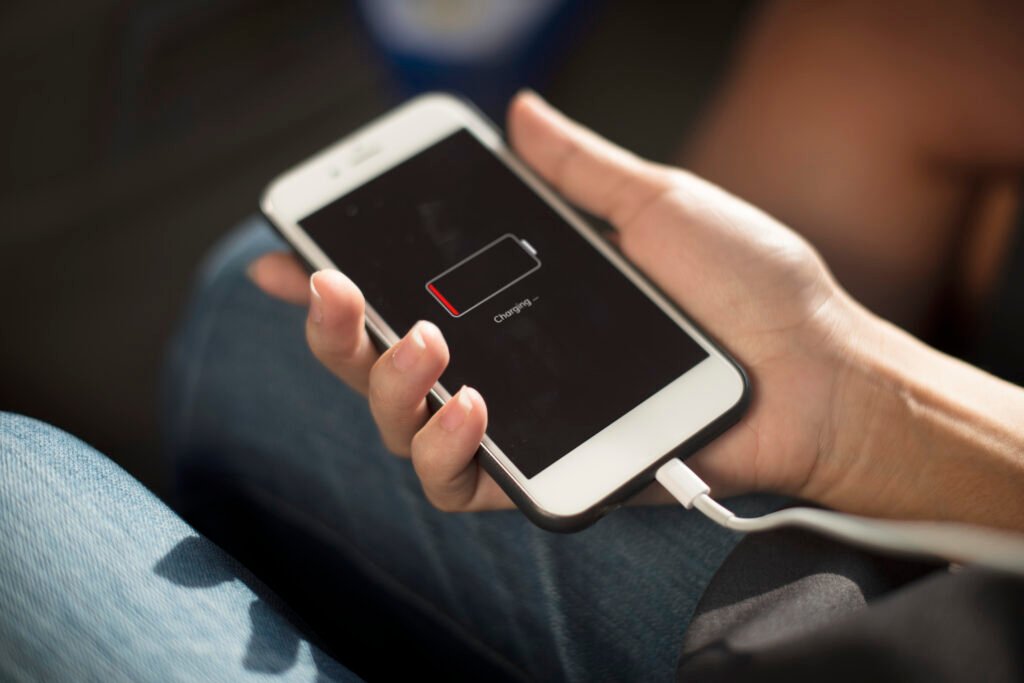
Why Does Phone Battery Drain Quickly?
Before learning how to extend battery life, it is useful to understand why your battery may be draining quickly.
Common causes include:
- High screen brightness
- Too many background apps
- Frequent gaming and video streaming
- Poor cellular signal
- Continuous GPS usage
- High display refresh rates
- Excessive notifications
- Outdated or poorly optimized apps
- Hot temperatures
- Heavy use of mobile data
Identifying which activities consume the most power can help you make the right changes.
1. Reduce Screen Brightness
The smartphone display can consume a significant amount of battery, especially when brightness is set very high.
Try using automatic brightness or manually lowering the brightness to a comfortable level. You can also reduce the screen timeout period so the display turns off sooner when you are not using your phone.
For phones with high-refresh-rate displays, switching to a lower refresh rate when maximum smoothness is unnecessary may also reduce power consumption.
2. Turn On Battery Saver Mode
Most smartphones today come with a built-in Battery Saver or Low Power Mode that helps reduce unnecessary energy consumption. When activated, it can limit background processes, control certain power-hungry functions, and adjust device activity to conserve charge.
This mode can be especially helpful when your battery percentage is getting low and you need your phone to stay powered for a longer period. Enabling it can give you extra usage time until you have access to a charger.
3. Check Battery Usage
Rather than trying to figure out the cause of battery drain on your own, take a look at the battery settings on your smartphone. Most devices include a battery usage feature that provides a breakdown of the apps and services consuming the most power.
If you notice that a particular app is using more battery than expected, try updating it to the latest version or limiting its background activity. If you rarely use the app, removing it from your phone can also help reduce unnecessary battery consumption.
4. Limit Background Apps
Some apps can keep running in the background even when you are not using them directly. They may refresh content, download updates, access your location, or send alerts, which can gradually consume your phone’s battery.
To reduce unnecessary power usage, consider limiting background activity for apps that you rarely open. However, be careful when changing these settings for important system applications, as restricting essential services may affect certain features or cause your phone to work improperly.
5. Control Location Services
Using GPS and other location-based features for long periods can put extra demand on your phone’s battery. Not every application needs access to your location all the time, so it is worth reviewing your location permissions regularly.
For apps that only require your location while you are using them, choose an option such as “While Using the App” if your smartphone provides it. You can also disable location access completely for apps that do not need this feature. These small changes can help minimize unnecessary battery usage.
6. Connect to Wi-Fi When Possible
Depending on your network conditions, using mobile data may consume more battery than connecting to a stable Wi-Fi network. This can be particularly noticeable when your phone is in an area with a weak cellular signal and has to work harder to maintain a connection.
When a dependable Wi-Fi network is available at home, school, or work, connecting to it can reduce the amount of cellular network activity on your phone. However, actual power consumption depends on factors such as your device, signal strength, network quality, and the type of tasks you perform.
7. Disable Unused Connections
Bluetooth, mobile hotspot, NFC, and other wireless features can contribute to battery usage.
If you are not using a particular feature, consider turning it off when practical. For example, turning off a mobile hotspot after finishing your connection can prevent unnecessary battery drain.
8. Reduce Unnecessary Notifications
Every notification can cause your phone to perform background activity and may wake the screen.
Review notification settings and disable notifications from apps that are not important. This can reduce distractions while also helping minimize unnecessary battery activity.
9. Avoid Extreme Temperatures
Temperature can have a major effect on smartphone batteries.
Excessive heat can accelerate battery aging, while very cold conditions can temporarily reduce battery performance.
Avoid leaving your phone in direct sunlight, inside a hot car, or near other sources of excessive heat. If the phone becomes unusually hot during charging or heavy use, allow it to cool down.
10. Keep Your Apps and Software Updated
Software updates can include bug fixes, security improvements, and changes to power management.
Keep your operating system and frequently used applications updated through official update channels. If battery drain suddenly becomes worse after installing an app or update, check battery usage to identify possible problems.
11. Reduce Heavy Gaming and Video Usage
Gaming, video recording, high-resolution streaming, and demanding applications can place significant loads on the processor and display.
If you need to save battery, reduce the amount of time spent on power-intensive activities. Lowering game graphics, frame rates, or display settings where available can also reduce power consumption.
12. Use Dark Mode When Appropriate
Dark Mode changes bright interface elements to darker colors.
On smartphones with OLED or AMOLED displays, dark interfaces can potentially reduce power consumption because individual pixels can be turned off to display true black. The benefit depends on the phone, brightness level, apps, and how much of the screen uses dark colors.
On LCD screens, the battery-saving benefit of dark mode is generally much smaller.
13. Use Optimized Charging Features
Many modern smartphones offer battery-management features designed to reduce the amount of time the battery spends at a high charge level.
Features may have names such as Optimized Battery Charging, Adaptive Charging, or similar terms depending on the manufacturer.
If your phone provides such a feature, enabling it can be useful for long-term battery management.
14. Use a Suitable Charger
Always use a compatible charger and cable that meet your smartphone manufacturer’s requirements.
Cheap or poorly made charging accessories may not provide the expected charging performance and can create safety risks. For fast charging, make sure both the phone and charger support the relevant charging technology.
15. Restart Your Phone Occasionally
If your phone has been running for a long time and begins behaving unusually, a simple restart can sometimes help resolve temporary software issues.
Restarting does not magically increase battery capacity, but it can help when an application or system process is behaving abnormally and consuming excessive resources.
How to Find Out What Is Using Your Battery
If your battery is draining quickly, start by checking your phone’s built-in battery statistics.
Look for:
- Apps with unusually high battery usage
- High screen-on time
- Background activity
- Location usage
- Poor network conditions
- Recent apps or updates
Once you identify the main source of battery consumption, you can make a targeted change instead of disabling features you actually need.
Does Charging Overnight Damage Your Phone Battery?
Modern smartphones use charging-management systems that control charging when the battery reaches a high level. However, keeping a phone at a very high charge level for extended periods can contribute to battery aging over the long term.
If your smartphone includes an optimized or adaptive charging feature, enabling it can help manage overnight charging.
How to Improve Phone Battery Health
Extending daily battery life and maintaining long-term battery health are slightly different goals.
To help maintain battery health:
- Avoid excessive heat.
- Use compatible charging accessories.
- Keep your phone’s software updated.
- Use optimized charging features when available.
- Avoid unnecessary high-temperature charging.
- Keep demanding activities to a reasonable level when the phone is already hot.
Remember that rechargeable batteries naturally lose capacity over time. No setting can prevent battery aging completely.
Final Thoughts
Learning how to improve phone battery life does not require complicated changes. Simple adjustments such as lowering screen brightness, controlling background apps, managing location services, reducing unnecessary notifications, and using Battery Saver Mode can make a noticeable difference in everyday use.
For long-term battery health, temperature and charging habits are also important. Instead of focusing only on battery capacity, pay attention to how you use and charge your smartphone.
By following these practical phone battery saving tips, you can reduce unnecessary battery drain and get more useful time from your smartphone between charges.
Frequently Asked Questions
How can I extend my phone battery life?
Reduce screen brightness, limit unnecessary background activity, use Battery Saver Mode, manage location services, and reduce demanding activities such as gaming and high-resolution video streaming.
Why is my phone battery draining so fast?
Fast battery drain can be caused by high screen brightness, demanding apps, background activity, poor network signals, location services, high temperatures, or an aging battery.
Does dark mode save battery?
Dark Mode can save some battery on OLED and AMOLED displays, particularly when displaying black areas. The effect is generally much smaller on LCD displays.
Is fast charging bad for battery health?
Fast charging is designed for compatible smartphones, but heat and charging conditions influence battery aging. Using compatible charging equipment and avoiding excessive heat can help maintain battery health.
Should I keep Battery Saver Mode on all the time?
You can, but it may limit certain background activities or performance features. For normal daily use, many people use it when battery levels are low or when they need to extend battery life.